
Prerequisites
- Be a Procore Administrator for your Procore Account
- Be able to add/install applications
Overview
- Navigate to App Management
- Find and click on Extracts Pro
- Navigate to Configurations
- Create a Configuration for Extracts Pro
- Ensure Extracts Pro is Visible
Walk-Through
- Navigate to App Management
Within your Procore account, in the top right corner click on the Apps dropdown and then click on App Management. If you don't see App Management, you likely are not a Procore Administrator for your account.
- Find and click on Extracts Pro
When viewing your installed apps, search for Extracts Pro and click View to view the details of the installed application.
- Navigate to Configurations
When viewing the Extracts Pro application, click on the Configurations tab.
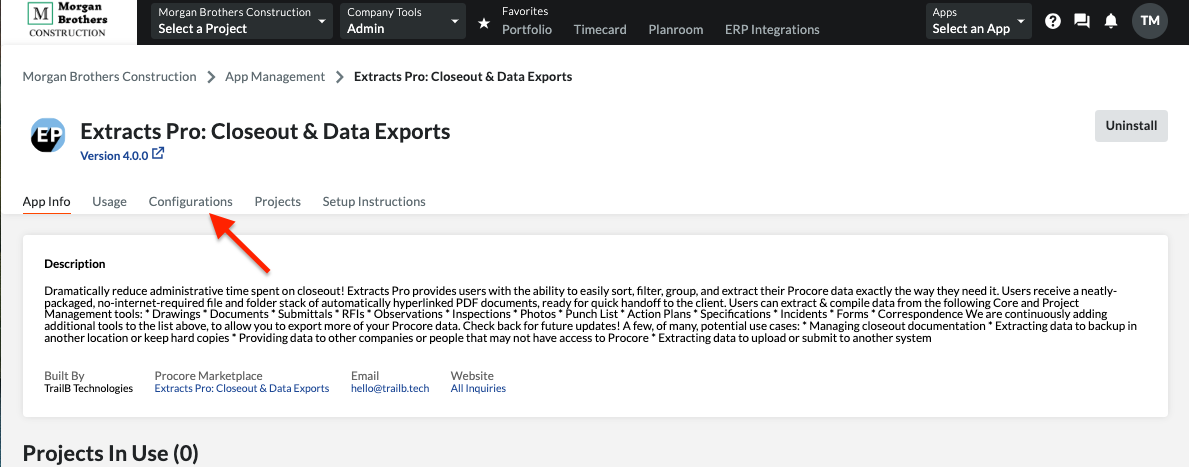
Important Note: If the Configurations tab does not appear, you must uninstall and re-install the app. It's a quirk of Procore's, and we're working with them to fix it!
- Create a Configuration for Extracts Pro
Find and click on Create Configuration - You'll want to create a Project Configuration. This will launch a screen that requires choosing the Procore projects that this Extracts Pro should be visible to and assigning the name of the application.
We typically recommend creating a Global Project Configuration that applies to all projects. You should also choose a descriptive Name so that users understand what Extracts Pro is for when they click on the Apps menu (Such as Closeout: Extracts Pro ). Once the configuration settings and name are set, click Create.
- Verify that Extracts Pro is Visible
Navigate to a Procore project that you’ve enabled visibility for Extracts Pro on. In the top right corner, click on the App dropdown, then find and click on Extracts Pro.